What if your AI assistant didn't just answer questions — but actually knew you? It knew your projects, your goals, your schedule, your writing style, and the context behind every request. And what if it could remember everything you'd ever told it, across every conversation, forever?
That's not science fiction. That's PAI / LifeOS — and you can install it today.
What Is PAI / LifeOS?
PAI stands for Personal AI Infrastructure. It's a Life Operating System — a layer of software that sits on top of AI and turns it from a generic chatbot into something genuinely useful for your life.
Think of it this way: a chatbot is like a brilliant stranger you call on the phone. Every conversation starts from scratch. You explain who you are, what you're working on, what you need. Then the call ends, and the stranger forgets everything.
PAI changes that entirely. It's the difference between a stranger and a personal assistant who has worked with you for years — one who knows your goals, your style, your projects, and how you like to work.
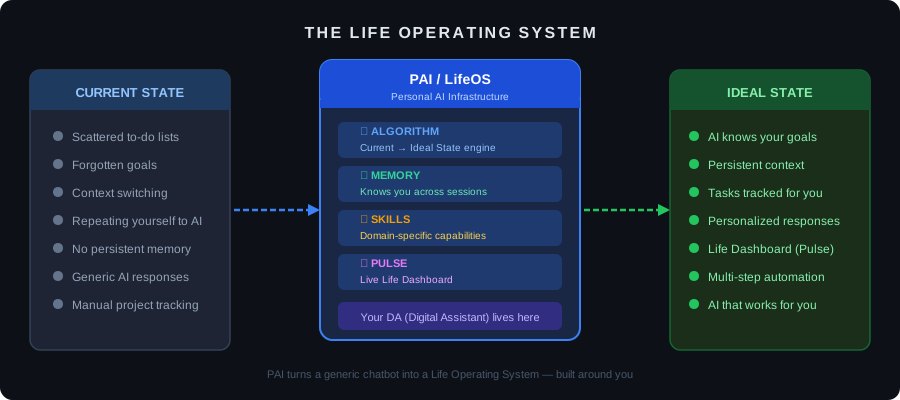
The Core Idea: Current State → Ideal State
Everything PAI does is organized around one elegant idea: every task is a journey from your current state to your ideal state.
When you ask your AI assistant to help with something — write a document, debug code, research a topic, plan a trip — it doesn't just make a guess at what "done" looks like. It first figures out:
- Where are you now? (What do you have, what's missing, what's broken)
- Where do you want to be? (What does success actually look like, with specific criteria)
- How do we get there verifiably? (What steps, what checks, what evidence of completion)
This systematic approach — called the Algorithm — is the gravitational center of PAI. It's what separates a thoughtful, reliable assistant from a hallucination-prone chatbot.
The Four Core Systems
PAI is built from four interlocking systems that each make your assistant smarter and more capable:
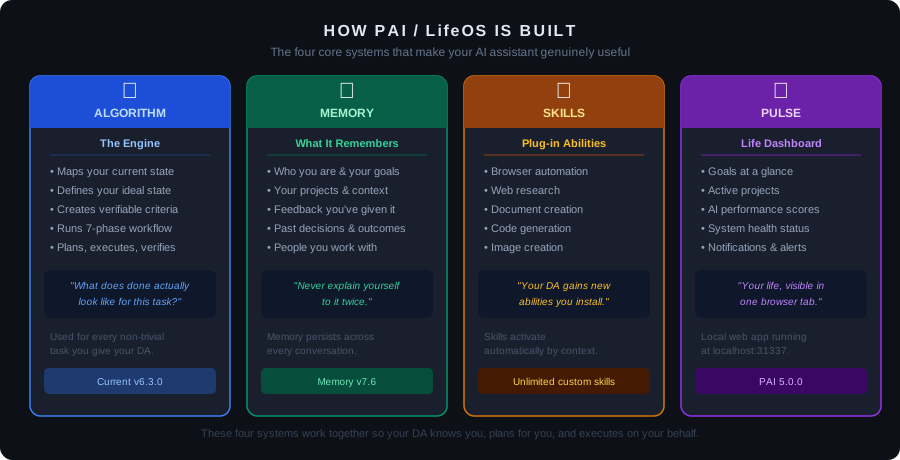
🧠 The Algorithm
The decision engine behind every complex task. When you give your AI assistant something non-trivial to do, it runs through a structured workflow: analyze the situation, define what success looks like, make a plan, execute it, verify results, and report back. No more "I think this might work" — the Algorithm demands verifiable outcomes.
💾 The Memory System
This is the piece that changes everything. Traditional AI has zero memory between conversations. PAI's memory system stores:
- Who you are — your name, your role, your communication style
- What you're working on — active projects, goals, deadlines
- Feedback you've given — things the AI did well, corrections you made, preferences you stated
- People in your life — colleagues, family, contacts and their context
- Past decisions — what you decided and why, so the AI doesn't re-litigate closed questions
Memory persists across every conversation. You never explain yourself twice.
⚡ Skills
Skills are domain-specific capabilities you install into your AI assistant, similar to apps on a phone. Browse the web, generate images, automate your browser, write and run code, create documents — each of these is a Skill that activates automatically when the context calls for it. The skill system is extensible: you can build your own, or install community-built skills.
📊 Pulse — The Life Dashboard
Pulse is a local web application (runs at localhost:31337 on your machine) that gives you a real-time view of your life as your AI sees it. Active goals, project status, your AI's performance metrics, pending tasks, notifications — all visible in one browser tab. It's the command center for your Life OS.
Meet Your DA — Your Digital Assistant
At the heart of PAI is your DA (Digital Assistant) — the AI personality that interfaces with all four systems. You give your DA a name, a voice, a personality, and communication preferences. Your DA isn't a generic "Assistant" — it's yours, configured the way you want it to work.
When you install PAI, you run a first-time interview. Your DA asks you questions:
- What do you do for work?
- What are your current goals?
- What projects are you working on?
- How do you prefer to communicate?
- What are your strongest opinions and beliefs?
Your answers become the foundation of your DA's understanding. Every future session starts with that context already loaded.
The name matters. Every PAI user names their own DA. It might seem like a small thing, but it creates a fundamentally different relationship with AI — one that feels like a collaboration, not a search engine query.
What You Need to Get Started
PAI runs on top of Claude Code — Anthropic's command-line AI tool. Here's what you'll need:
| Requirement | Details |
|---|---|
| Computer | Mac, Windows (WSL2), or Linux |
| Anthropic account | claude.ai — Pro subscription recommended ($20/month) |
| Claude Code CLI | Free to install; uses your Claude subscription |
| Terminal access | Basic comfort with a command line |
| Node.js + Bun | For running PAI's tooling |
| ~30 minutes | For initial setup and interview |
You don't need to be a programmer. You need to be comfortable typing commands in a terminal window. That's it.
Installation: Step by Step
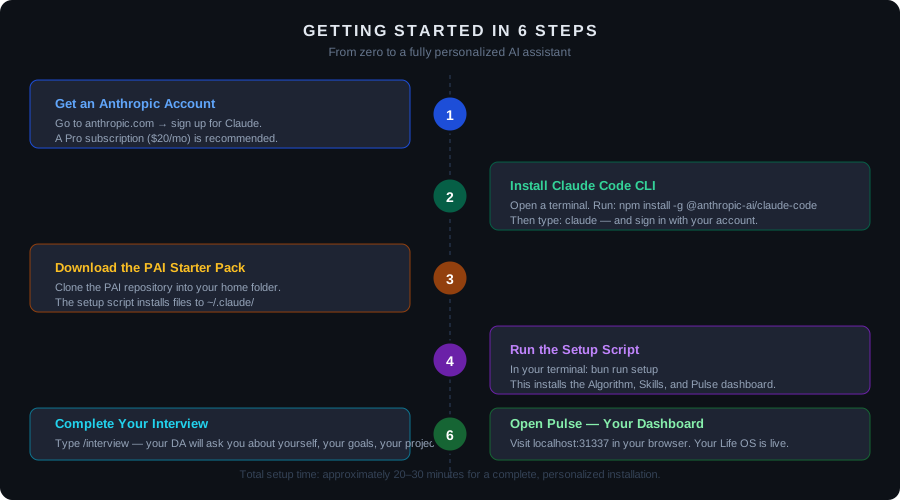
Step 1 — Create Your Anthropic Account
Go to anthropic.com and create an account. Sign up for Claude Pro ($20/month) for best results — it gives you access to the most capable Claude models and enough usage for heavy daily use.
Step 2 — Install Claude Code
Open a terminal (Terminal on Mac, PowerShell/WSL on Windows) and run:
`` npm install -g @anthropic-ai/claude-code ``
Then launch it:
`` claude ``
Follow the prompts to sign in with your Anthropic account. Once authenticated, type /help to confirm it's working.
Step 3 — Download the PAI Starter Pack
Clone the PAI repository to your home directory:
`` git clone https://github.com/your-username/pai-starter ~/.claude ``
The PAI configuration lives in ~/.claude/ — a hidden folder in your home directory. This is where your entire Life OS lives: your identity, your memory, your skills, your algorithm.
Step 4 — Run Setup
Navigate to the PAI directory and run the setup script:
`` cd ~/.claude bun run setup ``
This installs the Algorithm, sets up the Memory system, installs default Skills, and starts the Pulse dashboard server. It takes about 5 minutes.
Step 5 — Complete Your Interview
Launch Claude Code in the PAI directory:
`` claude ``
Then type:
`` /interview ``
Your DA will guide you through a structured interview — asking about your work, your goals, your projects, your communication preferences, and how you want it to operate. Take your time here. The more honest and specific your answers, the better your DA will know you.
This interview fills in your Principal Identity — the foundational context that your DA loads at the start of every future session.
Step 6 — Open Pulse
Open a web browser and navigate to:
`` http://localhost:31337 ``
Your Life Dashboard is live. You'll see your goals, your active projects, and your DA's performance metrics. This is your command center.
Your First Day With PAI
Once setup is complete, try these to get a feel for how PAI works differently from a regular chatbot:
Give it a complex task — "Help me plan the next three months of my side project" — and watch it run through the Algorithm: it'll ask clarifying questions, define what success looks like, create a structured plan, and present it for your review before executing anything.
Give it context once — Tell it about a person you work with: their name, their role, what projects you share. Then never mention it again. In future sessions, your DA will remember.
Ask for feedback on your work — Have your DA review something you've written, a decision you're considering, or a plan you've made. It applies your stated opinions and values as the lens, not generic advice.
Watch Pulse — After a session, refresh Pulse. You'll see completed tasks, updated project states, and new memories captured automatically.
The Human 3.0 Vision
PAI is built on a specific belief about where AI is heading: the people who will thrive in an AI-augmented world are not the ones who are best at using AI tools — they're the ones who have built the best infrastructure for AI to work within their lives.
That means:
- Your AI knows your context deeply, so its output is always relevant to you
- Your AI executes complex multi-step tasks reliably, not just one-off answers
- Your AI amplifies your specific strengths rather than giving everyone the same generic assistance
The PAI Maturity Model describes a progression from Aware (you know AI exists) → Activated (you use AI regularly) → Aligned (your AI knows you deeply) → Actualized (your AI is a genuine extension of your capability).
Most people are at Aware or Activated. PAI is designed to get you to Aligned and Actualized.
Is This For Me?
PAI is a good fit if you:
- Work on complex, multi-step projects where context matters
- Find yourself re-explaining the same context to AI over and over
- Want your AI to push back intelligently, not just agree with everything you say
- Are comfortable with a terminal and willing to spend 30 minutes on setup
- Think of yourself as someone who builds systems, not just uses tools
It's less suited for:
- People who want zero setup and immediate simplicity
- Use cases requiring only single, isolated AI queries
- Environments where you can't install local software
What Comes Next
PAI is not a finished product — it's a continuously evolving system. The Algorithm is versioned and regularly upgraded. New skills are added. The memory system deepens over time as your DA learns more about how you work.
The goal isn't to install something once and forget it. The goal is to build, over months and years, an AI infrastructure that becomes genuinely indispensable — that knows you as well as a great long-term colleague.
The setup takes 30 minutes. The payoff compounds indefinitely.
PAI / LifeOS is an open-source personal AI infrastructure project. Installation instructions, the starter pack, and community skills are available at the project's GitHub repository.